
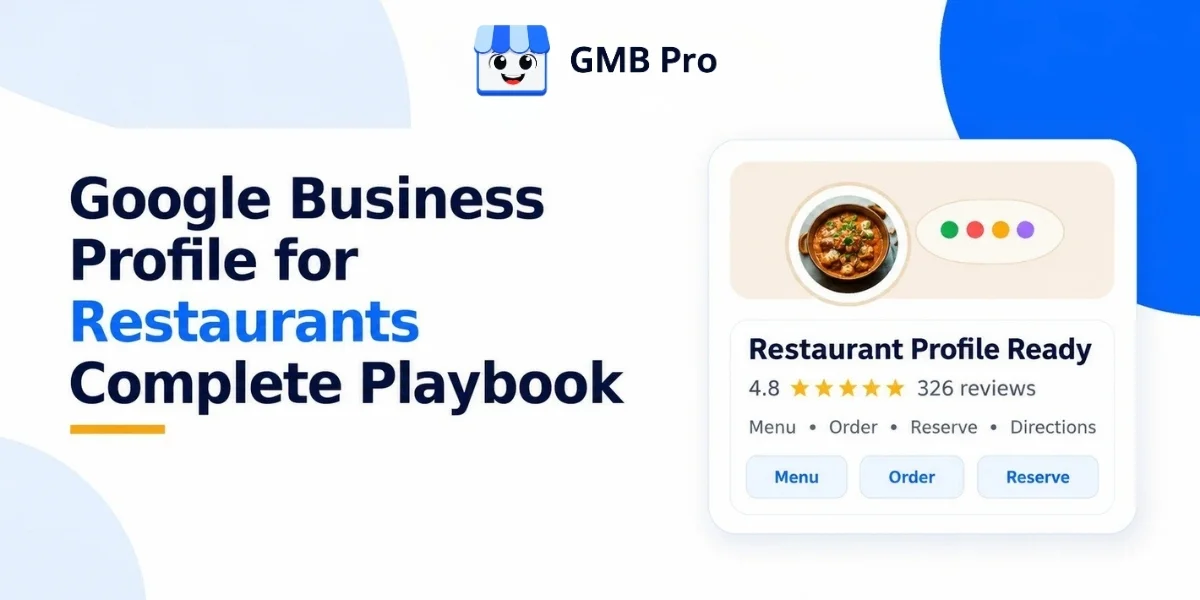
A diner deciding between your restaurant and the one next door is usually not reading a long website page first. They are checking your Google Business Profile, looking at whether you are open, scanning your food photos, checking reviews, and deciding within seconds whether to call, visit, order, or book.
That is why a restaurant profile needs more than basic setup. It needs an accurate category, current hours, menu details, ordering links, reservation options, real photos, fresh reviews, and regular posts. It also needs ongoing checks because Google has changed several restaurant-related features over the last two years.
This playbook explains how to manage a restaurant Google Business Profile in 2026. It also updates old information about Google Posts, Q&A, food ordering, and chat, so your process matches how Google Business Profile works today.
Quick Answer:
A strong restaurant Google Business Profile needs a specific cuisine category, accurate hours, a live menu link, working ordering and reservation paths, real recent photos, consistent review replies, and regular posts. In 2026, restaurants should also understand that Google Posts follow a six-month archive rule, native chat and call history are no longer available, and the old Q&A experience has moved toward Ask Maps and AI-assisted answers.
Key Takeaways
- Restaurants should choose the most specific accurate category instead of relying only on the broad Restaurant category.
- Order links now need active management because Google allows restaurant owners to set a preferred ordering provider and request removal of unwanted third-party links.
- Reserve with Google is still active for restaurant booking partners where supported. The older shutdown confusion mainly relates to tours, activities, and attractions.
- Google Posts are still useful for specials, events, and updates, but older posts are archived after six months unless a date range is set.
- Native Business Profile chat and call history were discontinued in July 2024. Eligible accounts may have text or WhatsApp contact options, but this is not universal.
- The Q&A API was discontinued in November 2025. Many profiles now surface question-style answers through Ask Maps and other AI-assisted experiences.
- Multi-location restaurant groups need one repeatable profile management workflow across all branches.
Why This Profile Is Your Busiest Host
Restaurants get evaluated quickly. Customers want to know whether the place is open, whether the food looks good, whether the menu fits their plan, and whether other diners had a good experience. A restaurant profile answers those questions before a customer reaches your website.
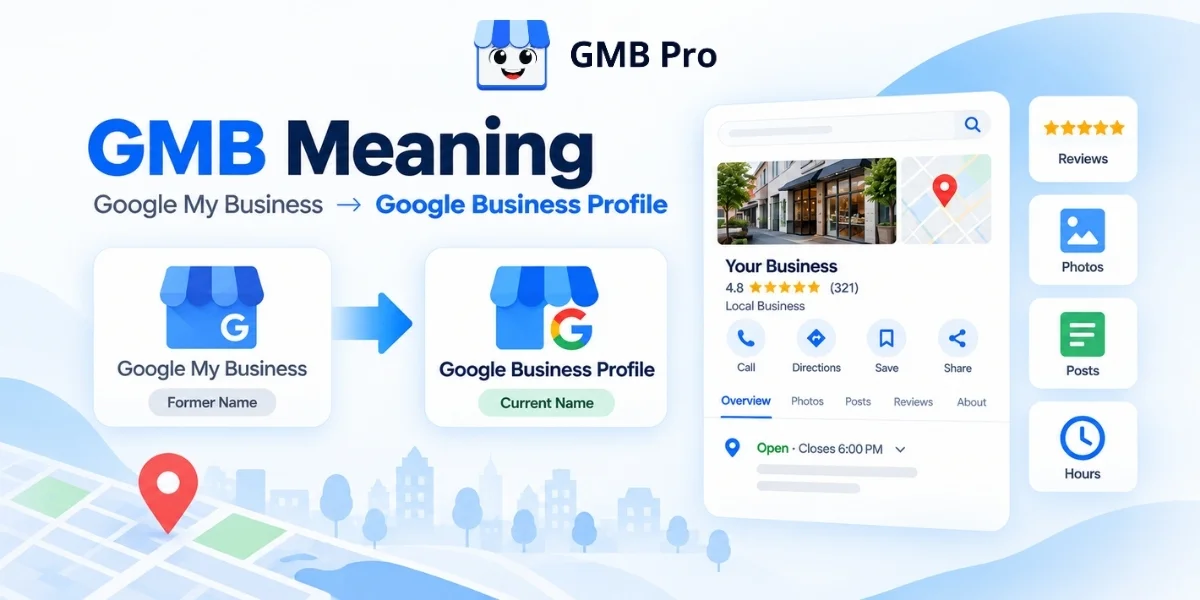
For a simple definition of how a profile works across Search and Maps, read What Is a Google Business Profile.
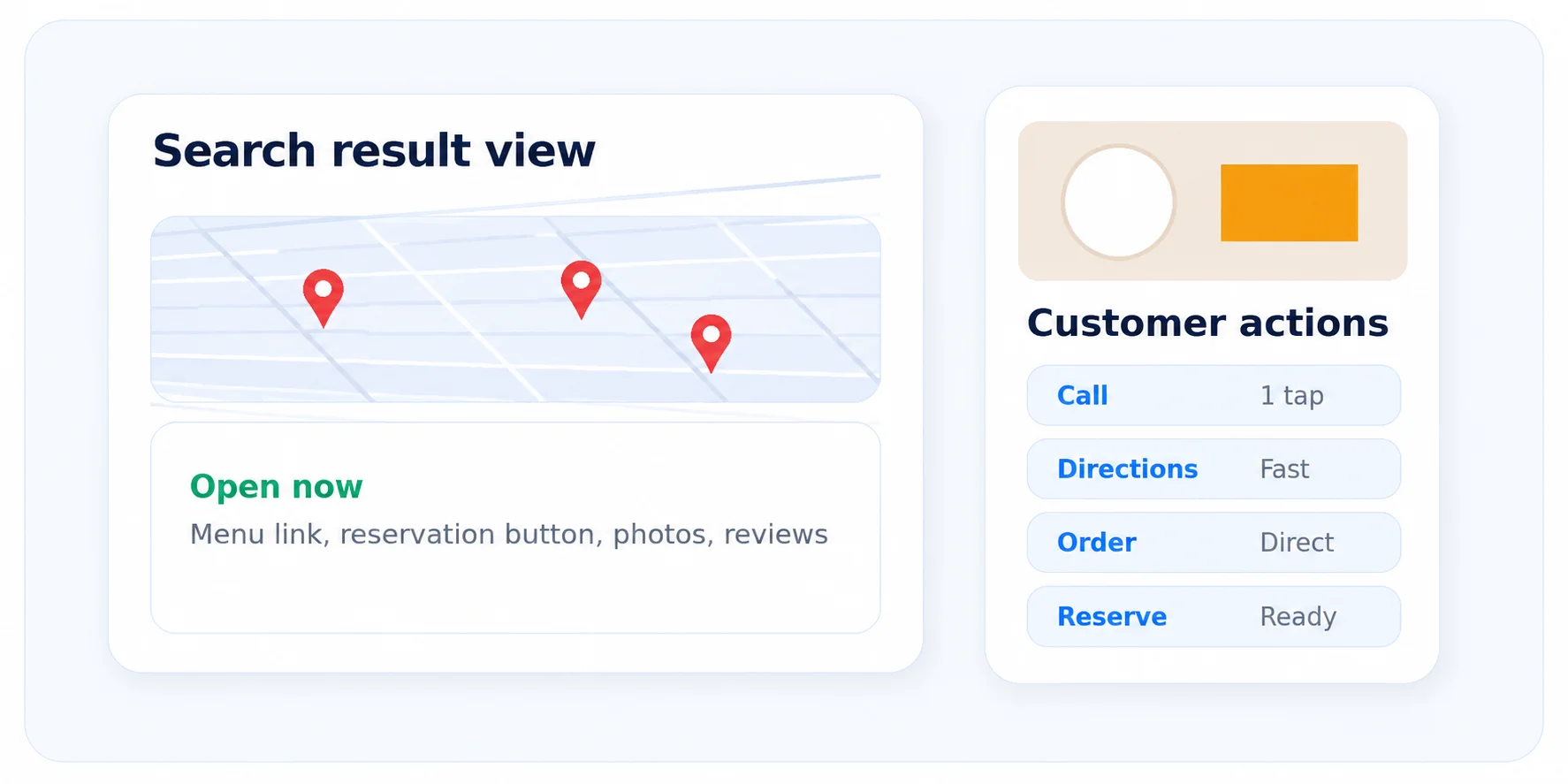
A strong profile does not only improve visibility. It reduces friction. A customer can tap directions, call the restaurant, check the menu, order online, or reserve a table from the same place. That is why restaurants should treat the profile as a live marketing channel, not a listing that gets filled once and forgotten.
Step 1: Choose the Right Restaurant Category
Primary category is one of the highest-leverage choices on the profile. Google uses it to understand what kind of local searches the business is relevant for. For restaurants, this means specificity matters.
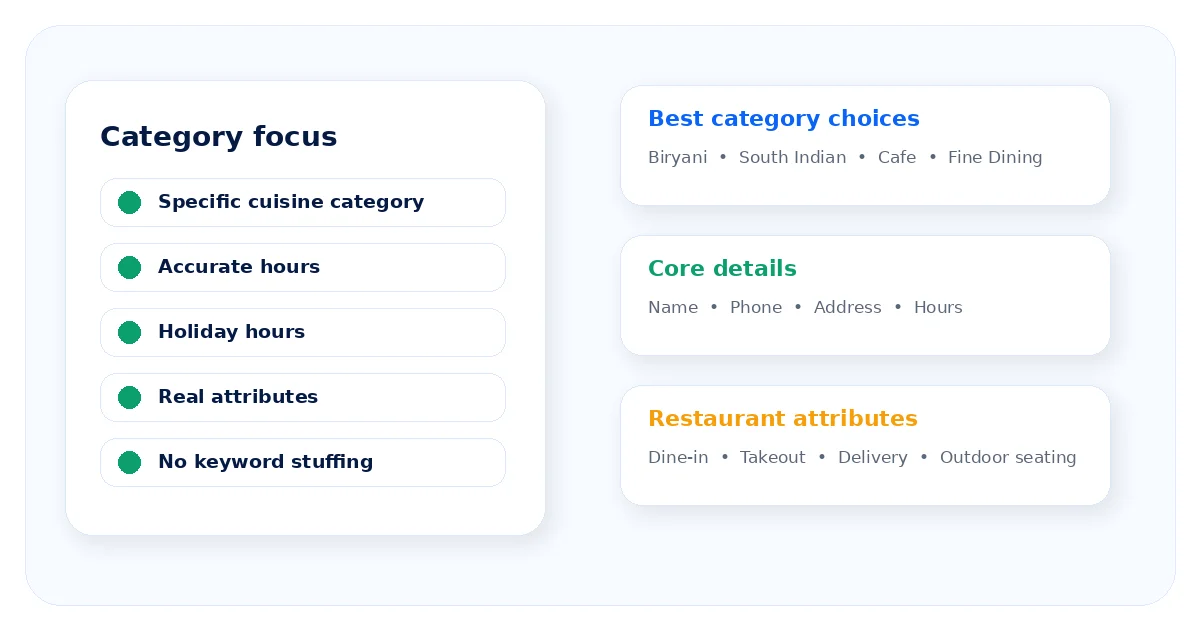
Use the narrowest accurate category available. If the business is a South Indian restaurant, bakery, cafe, biryani restaurant, vegetarian restaurant, or fine dining restaurant, that specific category is usually better than a generic Restaurant category. Secondary categories can help, but only when they genuinely apply.
For a broader ranking view, compare this with the category section in our Google Business Profile ranking factors guide.
Step 2: Get the Core Information Right
Restaurant details change more often than many other local business categories. Hours, menu links, holiday service, delivery options, and special events can shift quickly. Small errors here can cost real customers.
- Use the real restaurant name exactly as it appears on signage and brand assets.
- Match address and phone details with the restaurant website and important directories.
- Keep regular hours accurate for dine-in, takeaway, delivery, and special service windows where supported.
- Update holiday hours before major holidays, festivals, long weekends, and private event closures.
- Select attributes that reflect current reality, such as dine-in, takeaway, delivery, outdoor seating, wheelchair access, and family-friendly details.
- Write a natural description that explains the cuisine, neighbourhood, atmosphere, and key dining experience without keyword stuffing.
For field-by-field setup guidance, use our Google Business Profile optimization guide before making large changes.
Step 3: Set Up Online Ordering the Current Way
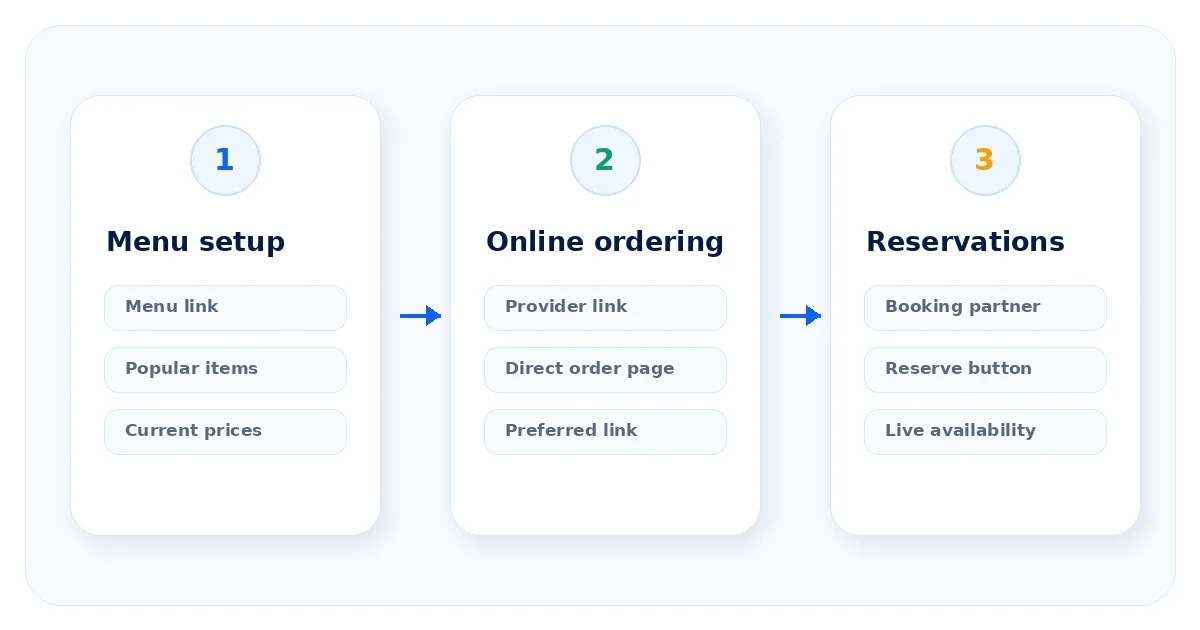
Online ordering needs active control. Google’s current help explains that restaurants can show order options from third-party providers and links added by the business. Restaurants can also set a preferred ordering provider for pickup or delivery.
The official Google food ordering help also says providers must remove third-party ordering links within five business days after a valid business request. Review those settings in your profile using Google’s online ordering guidance.
- Add your own direct ordering page when possible.
- Mark your preferred ordering option for pickup and delivery where available.
- Remove third-party ordering links that are outdated, unauthorized, or no longer useful.
- Check ordering links after changing providers so customers do not land on a broken or wrong page.
- Make sure pricing, delivery radius, and available items match the restaurant’s current operations.
Step 4: Set Up Reservations
Reserve with Google continues to support restaurant bookings through partner systems where available. A restaurant that uses a supported booking provider should check whether the Reserve a table button appears correctly and whether availability syncs into the booking system.
Restaurants using partners such as OpenTable, Resy, Tock, or other Reserve with Google partners should confirm that the profile is verified, the partner connection is active, and the booking flow works from both mobile Search and Maps.
Step 5: Build Out the Menu
A menu link is essential, but it should not be the only menu signal. Google’s restaurant profile tools allow restaurants to show menu information, menu links, and popular item details where available. This helps customers understand the offering faster.
- Add a direct menu link to the correct page, not the homepage.
- Keep the menu link mobile-friendly because most restaurant searches happen on mobile devices.
- List popular items with clear names and current prices where the profile supports it.
- Remove dishes, offers, or seasonal items that are no longer available.
- Use real dish names that customers search for, not only internal kitchen names.
Step 6: Add Photos That Actually Drive Visits
Restaurant photos are decision-making assets. A customer wants to see food quality, seating, hygiene, ambience, entrance, and crowd comfort before they choose a place. Stock photography weakens trust because it does not show the real experience.
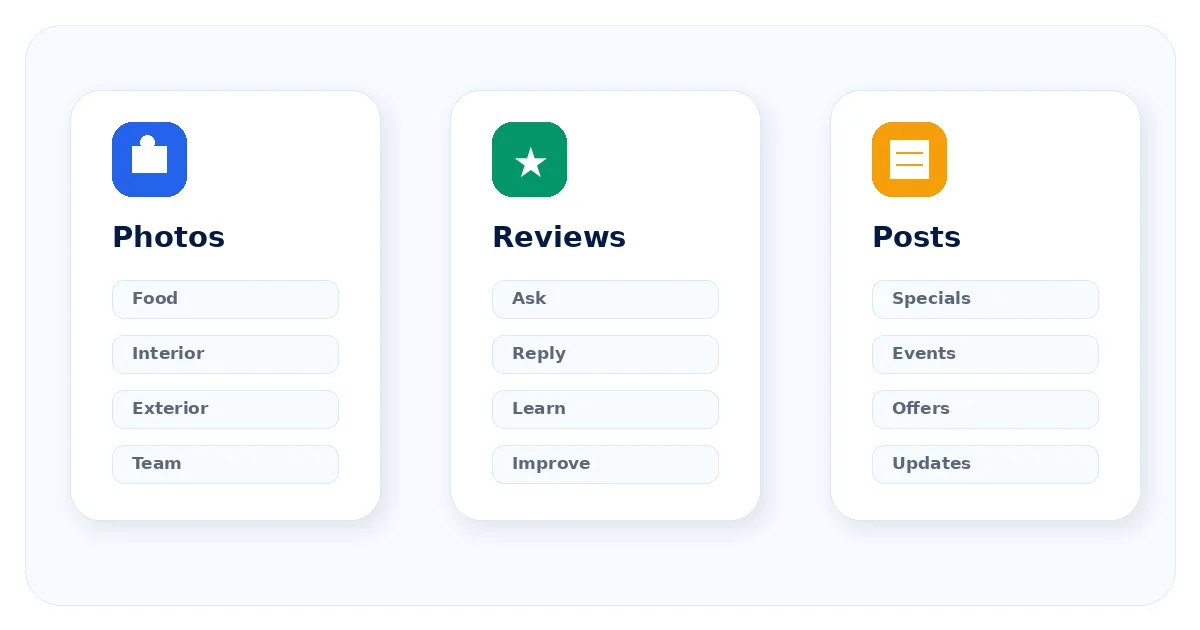
- Upload real photos of actual dishes, interiors, exterior signage, staff at work, and table setups.
- Refresh photos every few weeks, especially after menu changes, festive decor, or renovation work.
- Use clear, well-lit photos that accurately represent the restaurant.
- Include exterior photos so first-time visitors can recognize the entrance.
- Avoid screenshots of printed menus as the main menu experience. Use the menu link and item fields instead.
A monthly visual review fits well inside a wider profile health check. You can use our Google Business Profile audit checklist for that routine.
Step 7: Turn Reviews Into a System
Reviews matter heavily for restaurants because food, service, hygiene, ambience, and waiting time are all subjective. A customer often trusts other diners before they trust the restaurant’s own description.
Collect reviews consistently
Ask happy customers at the right moment, such as after a good dine-in experience, successful delivery, catering order, or private event. Use a direct review link or table QR code to reduce friction.
Reply within a few days
Reply to both positive and negative reviews. Thank customers specifically when they mention a dish, staff member, or visit type. For complaints, acknowledge the concern calmly and avoid sounding defensive.
Watch the trend, not only the average
A steady stream of recent reviews can be more convincing than a large number of old reviews. If review velocity slows down, restart your review request process before competitors look more active.
For review workflow ideas beyond restaurants, see our Google Business Profile management guide.
Step 8: Post Like the Kitchen Depends on It
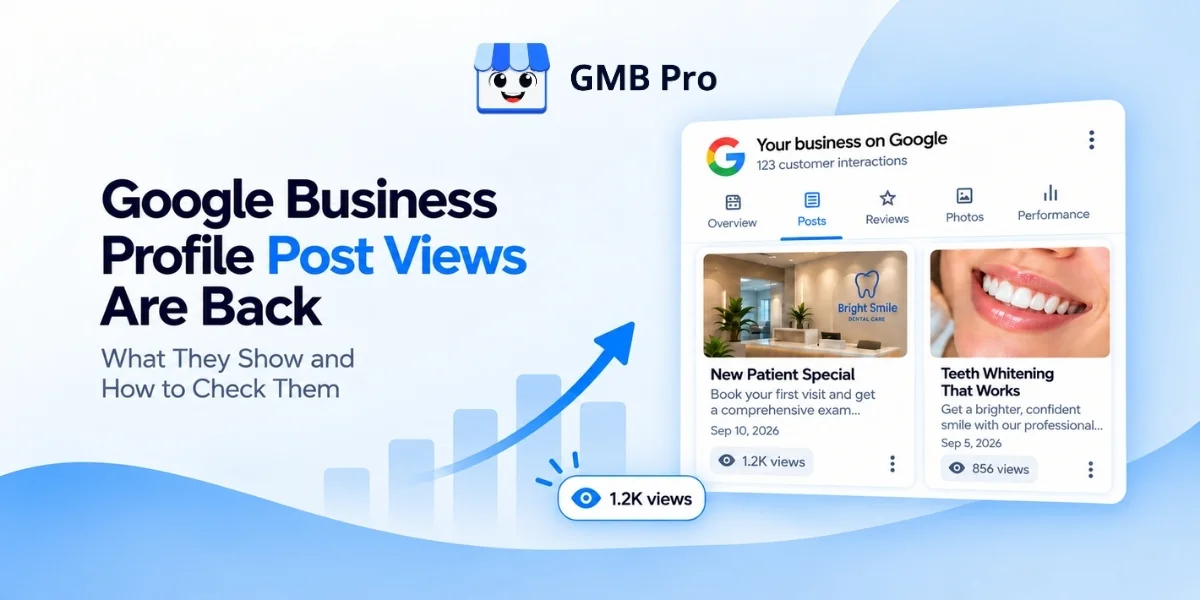
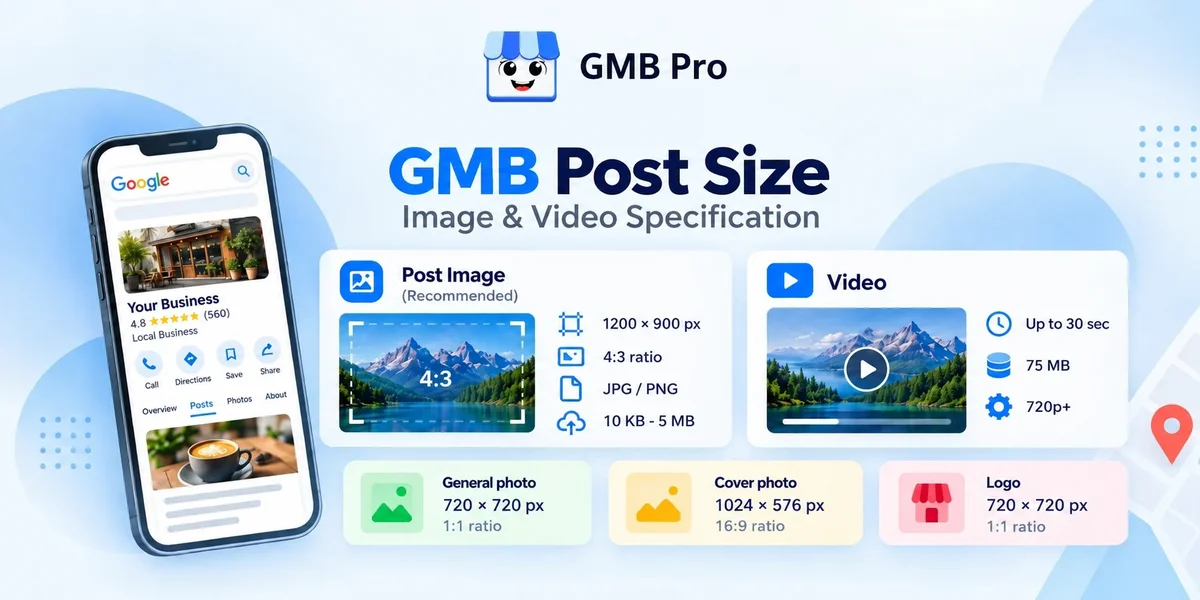
Posts are useful for specials, offers, events, new menu items, holiday menus, and seasonal promotions. Google says posts can include text, photos, videos, and action buttons, and they can appear in Search and Maps.
Current Google guidance says posts older than six months are archived unless a date range is set. Use that rule as your reference when planning post frequency.
- Post weekly as a practical minimum for most restaurants.
- Use real food or ambience photos instead of generic graphics.
- Promote daily specials, weekend menus, events, festive offers, brunches, happy hours, and chef recommendations.
- Use a clear call to action such as Order now, Call now, Reserve, or Learn more.
- Keep captions short and specific. Avoid vague lines that could apply to any restaurant.
Step 9: Manage Multiple Locations Without Losing Consistency
A restaurant group usually faces a consistency problem before it faces a strategy problem. One branch may have fresh photos and fast review replies, while another may have outdated hours, old menu links, or unanswered complaints.
- Create a shared profile management calendar across locations.
- Keep brand-wide fields consistent while allowing branch-specific posts, photos, and offers.
- Assign one profile owner per location and one central reviewer for quality control.
- Review all location profiles monthly for hours, menu links, review response time, and photo freshness.
- Compare performance by location so weaker branches can be supported quickly.
If you are comparing software options for this kind of workflow, read our Google Business Profile management software guide.
Restaurant-Specific Ranking Factors
The same relevance, distance, and prominence framework applies to restaurants, but food businesses rely more heavily on quick decision signals. Category accuracy, review recency, photo freshness, menu accuracy, and active posts can strongly influence whether a customer chooses your listing after it appears.
Distance still matters, but restaurants can win attention through stronger relevance and prominence. A specific category, accurate hours, a helpful menu, real photos, and regular review replies give Google and customers clearer signals than a thin or outdated profile.
2026 Platform Changes Restaurants Should Know
- Order links need closer review because restaurants can add custom links, set preferred ordering options, and request removal of third-party links.
- The My Business Q&A API was discontinued on November 3, 2025. Public Q&A has been replaced or reduced across many profiles as Ask Maps and AI-assisted answers become more visible.
- Business Profile chat and call history were discontinued on July 31, 2024. Eligible accounts may show text or WhatsApp contact options, but restaurants should confirm availability before relying on it.
- Posts older than six months are archived unless a date range is set, so weekly posting is about freshness and conversion, not a seven-day expiry rule.
When platform changes create confusion, compare your workflow with our local SEO tool comparison guide to understand what should be automated and what still needs manual review.
Common Mistakes Restaurants Should Avoid
- Using only the generic Restaurant category when a specific cuisine category is available and accurate.
- Leaving old delivery marketplace links active after switching providers.
- Assuming Reserve with Google is gone for restaurants because of unrelated booking changes in other categories.
- Letting negative reviews sit unanswered during busy service weeks.
- Using a photo of a printed menu instead of a clean menu link and item list.
- Posting once a month with generic captions instead of creating useful weekly updates.
- Managing multiple restaurant locations without a shared checklist or reporting process.
A Simple Weekly Workflow for Restaurants
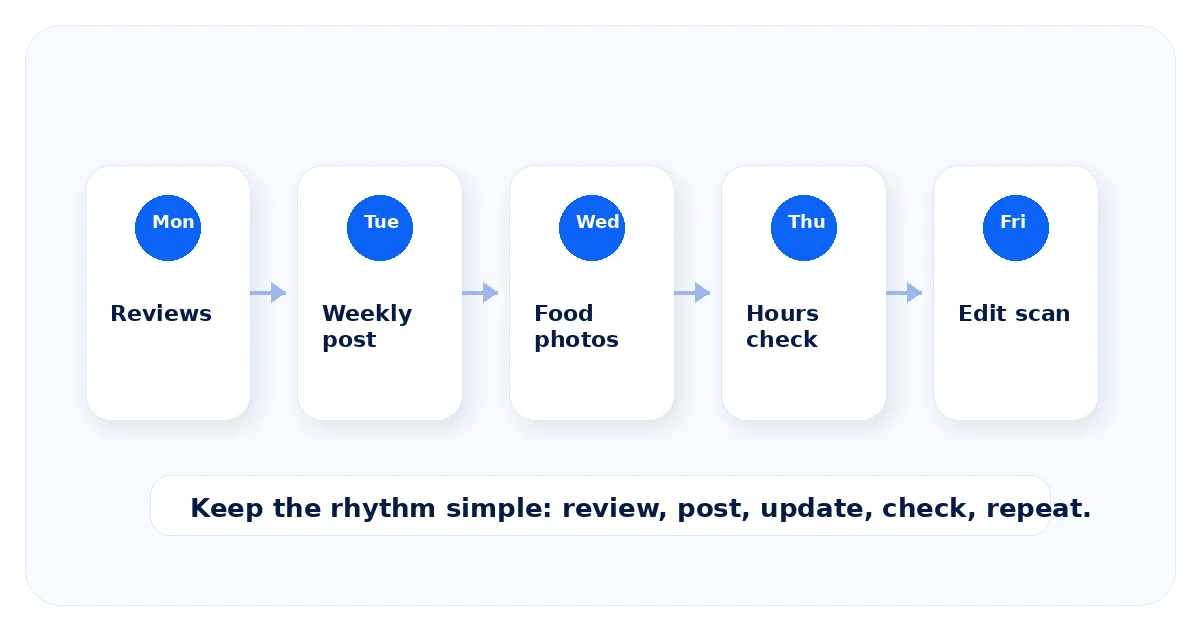
| Day | Profile Task |
|---|---|
| Monday | Reply to weekend reviews and note recurring complaints. |
| Tuesday | Publish one post for the week’s special, event, offer, or menu item. |
| Wednesday | Add one or two real photos from recent service. |
| Thursday | Check weekend hours, holiday hours, reservation links, and ordering links. |
| Friday | Scan for suggested edits, missing information, and broken links before the weekend rush. |
| Monthly | Review performance trends, compare branch activity, and audit menu, photos, posts, reviews, and citations. |
How GMB Pro Helps Restaurants Manage Their Profile
Everything in this playbook is manageable for one quiet location. It becomes harder when the restaurant is busy, the team changes often, or the business grows into multiple branches.
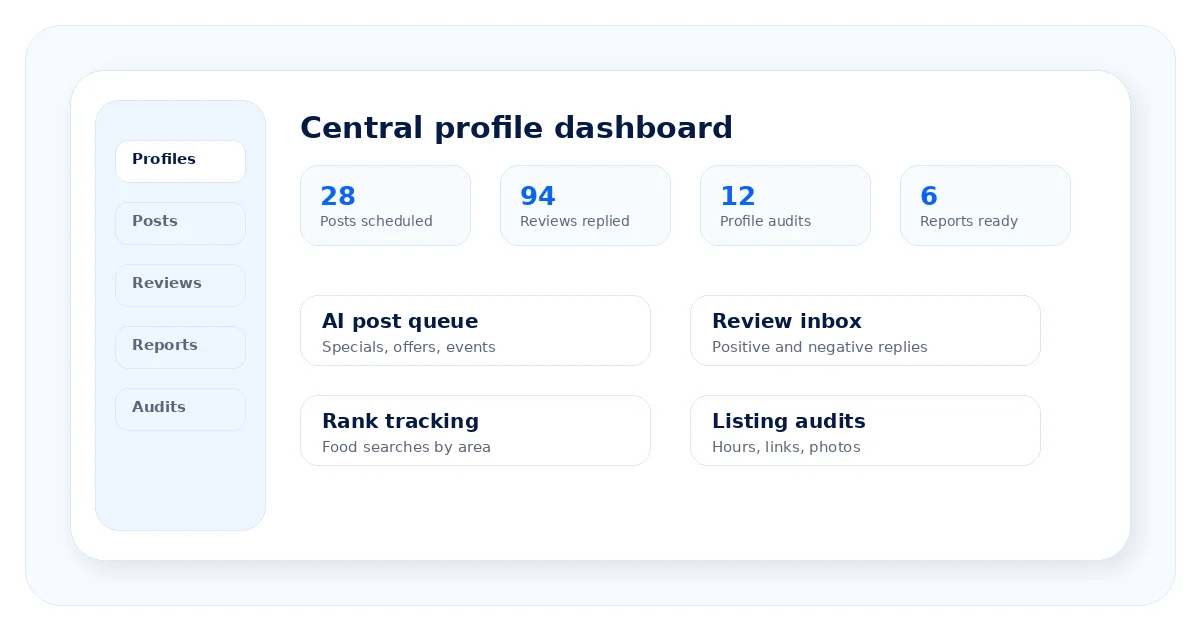
For restaurants that want posting, review workflows, rank tracking, audits, and reporting in one place, GMB Pro for restaurants helps turn the weekly checklist into a repeatable system.
- AI-assisted posts for specials, offers, events, and menu updates.
- Review workflow support so positive and negative reviews do not pile up.
- Rank tracking for restaurant and food-related local searches.
- Profile audits for hours, links, categories, and missing information.
- Reports that make location performance easier to compare.
Related Reading
- What Is a Google Business Profile?
- Google Business Profile Management Guide
- How to Optimize Your Google Business Profile
- 12 Google Business Profile Ranking Factors
- Google Business Profile Audit Checklist
- Google Business Profile Management Software Guide
If you want to understand how this fits into a wider product workflow, read the GMB Pro vs Localo vs BrightLocal comparison.