
GMB Post Size: The Complete Image and Video Specification Guide
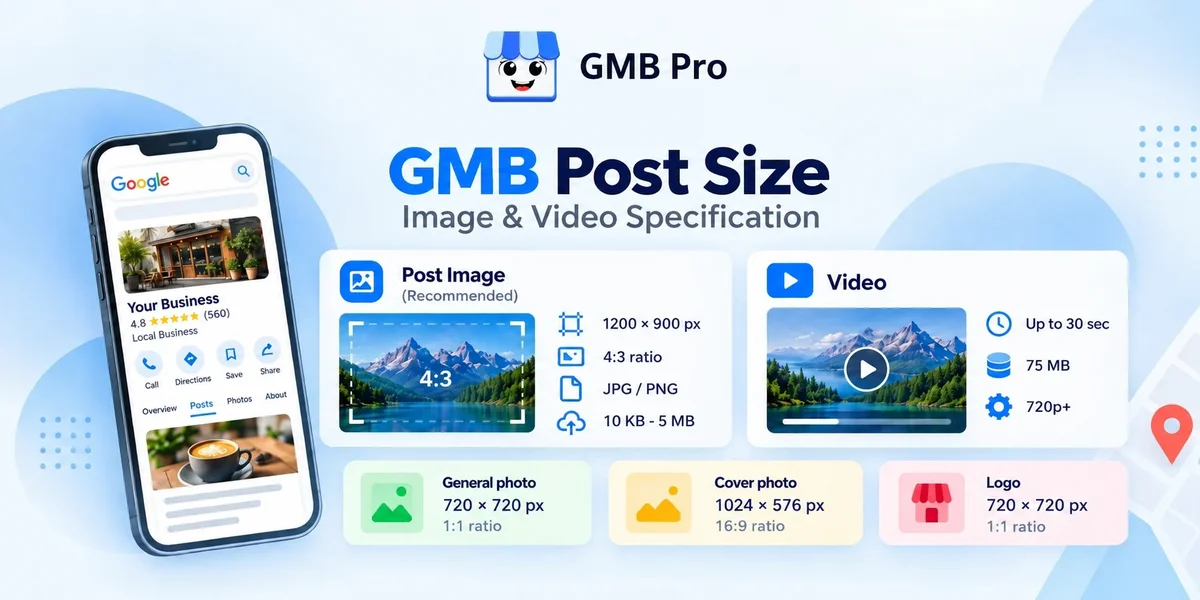
Upload the wrong size image to a Google Business Profile post and Google will not reject it outright, it will just crop it, usually from the center, cutting off exactly the part you wanted people to see. This guide gives you the exact specs for GMB posts in 2026, plus the related specs for photos, cover photos, and logos, since mixing these up is where most of the confusion actually comes from.Quick AnswerThe recommended GMB post image size is 1200 x 900 pixels at a 4:3 aspect ratio, uploaded as a JPG or PNG between 10 KB and 5 MB. This is different from a general profile photo, which uses a 1:1 square ratio at 720 x 720 pixels. Videos in posts can be up to 30 seconds long and up to 75 MB, at a minimum resolution of 720p.Key TakeawaysPost images use a 4:3 ratio at 1200 x 900 pixels, not the 1:1 square ratio used for general photo uploads.What's New, Offer, and Event posts all share the exact same image specs. The post type changes the fields available, not the media requirements.Videos can run up to 30 seconds and 75 MB at 720p or higher, per Google's official guidance.Post text has a 1,500 character limit, but only the first 100 to 300 characters typically show before a customer has to click through.Off-ratio images are not rejected, they are cropped from the center, which is how logos and text end up cut off.The Complete Size Cheat SheetBookmark this table. It covers every image and video type you can upload to a Google Business Profile, not just posts, since these specs get confused with each other constantly.Media TypeRecommended SizeFormatFile SizePost image (What's New, Offer, Event)1200 x 900 pxJPG or PNG10 KB to 5 MBProfile photo / gallery photo720 x 720 pxJPG or PNG10 KB to 5 MBCover photo1024 x 576 pxJPG or PNG10 KB to 5 MBLogo720 x 720 pxJPG or PNG10 KB to 5 MBVideo (posts or gallery)720p minimumMP4 recommendedUp to 75 MB, up to 30 secondsPost Image Size in DetailFor the image inside a Google Post specifically, 1200 x 900 pixels at a 4:3 ratio is the size to aim for. Google technically accepts smaller images, with a practical floor around 250 x 250 pixels, but anything under roughly 720 pixels on the short side tends to look soft or pixelated once Google's system processes and displays it across Search, Maps, and the Knowledge Panel.Why 4:3 and not square or widescreenGoogle displays post images in a 4:3 frame. Upload a square (1:1) or widescreen (16:9) image instead, and Google crops it to fit, typically from the center. That crop can cut off a logo sitting near the edge, trim the top of a dish in a food photo, or slice off part of a headline overlay. Building your image at 4:3 from the start avoids this entirely.Keep key details in the safe zoneEven at the correct ratio, keep logos, faces, and text within the central 80 to 90% of the frame. The outer edges are the first area trimmed if Google's display context needs a slightly different crop on a particular device or surface.Video Specs for PostsGoogle's official guidance allows videos up to 30 seconds long, up to 75 MB in file size, at a minimum resolution of 720p. In practice, some businesses have uploaded longer videos successfully, since file size rather than duration appears to be the harder limit, but quality is often reduced once you exceed the official spec, and Google does not guarantee longer videos will process correctly. For a reliable result, stay within the 30-second, 75 MB guideline and export at 720p or 1080p.A short, focused video, 10 to 20 seconds, well under the file size cap, tends to be more useful for a local business than a video stretched to the edge of the limit.Character Limits and TextPost descriptions allow up to 1,500 characters. What actually matters more is the first 100 to 300 characters, since that is roughly what shows in the Knowledge Panel before a customer has to click through, and the exact cutoff shifts depending on whether a call-to-action button is included. Front-load the specific offer, date, or detail rather than saving it for the end of a long paragraph.Call-to-Action Button OptionsEach post can include one call-to-action button. The available options are:Book, linking to a booking or reservation pageOrder online, linking to a food or product ordering pageBuy, linking to a product or e-commerce pageLearn more, linking to any relevant pageSign up, linking to a registration or newsletter pageCall now, using the phone number already on your profileOffer posts also support an optional coupon code and redemption link instead of, or alongside, a standard button.Does Size Differ by Post Type?This is where people often get confused. What's New (the default, standard update post), Offer, and Event posts all use the identical image specification: 1200 x 900 pixels, 4:3 ratio, JPG or PNG, 10 KB to 5 MB. What changes between post types is the extra fields available, an Offer post adds start and end dates plus a coupon code, an Event post adds a specific date and time, but the media requirements stay exactly the same across all three.Standard posts stay in their most visible, active placement for about seven days. After that, they are not deleted, they move into an archived state still accessible under "View previous posts," while a fresh post takes the prominent spot. That is one more reason a steady weekly posting habit matters more than a single well-designed post.Common Sizing MistakesUploading a square Instagram-style image directly into a post, resulting in an unwanted center crop.Placing a logo or text too close to the edge, which gets trimmed in some display contexts even at the correct ratio.Using a heavily compressed, low-resolution image that looks fine on a phone screen but blurs once scaled for Search and Maps.Assuming Offer or Event posts need a different image size than a standard post, and formatting inconsistently as a result.Uploading a video near the 75 MB cap without checking resolution, resulting in Google reducing quality further during processing.Let GMB Pro Handle the SizingNone of these specs are complicated individually, but remembering them every single week, for every location, is exactly the kind of small detail that slips. GMB Pro's post automation generates and formats images to the correct 4:3 post specification automatically, so every scheduled post is sized right without anyone checking a pixel count.Never think about post dimensions againGMB Pro creates AI-generated posts, sized correctly for Google's post frame, and schedules them automatically across every connected location.For the full picture of what to actually post, see our guide on Google Business Profile management, which covers posting cadence alongside reviews, photos, and audits.The Bottom LineGet the ratio right and most of the guesswork disappears: 4:3 for post images, square for general photos and logos, 16:9 for the cover photo, and 30 seconds under 75 MB for video. The rest is consistency, showing up weekly with a properly sized image so nothing gets cropped, blurred, or lost at the edges.

Sachin Jangir
Founder